JJ Keller - Create an Account and Login to Employee Center FMLA Manager for FMLA Events


Create an Account and Login to Employee Center FMLA Manager for FMLA Events

Create an Account and Login to Employee Center FMLA Manager for FMLA Events


1. Navigate to https://employeecenter.fmlamanager.com/


2. Click "Create Account"

Screenshot of: Click "Create Account"


3. Click the "Email" field. Enter the personal email address that you provided to the Clerk's office as your secondary email address. JJ Keller will be sending all communications to your personal email address not your work email address.

Screenshot of: Click the "Email" field.  Enter the personal email address that you provided to the Clerk's office as your secondary email address.  JJ Keller will be sending all communications to your personal email address not your work email address.


4. Click "Continue"

Screenshot of: Click "Continue"


5. Click the "Company Code" field. Enter 11B011

Screenshot of: Click the "Company Code" field.  Enter 11B011


6. Click "Continue"
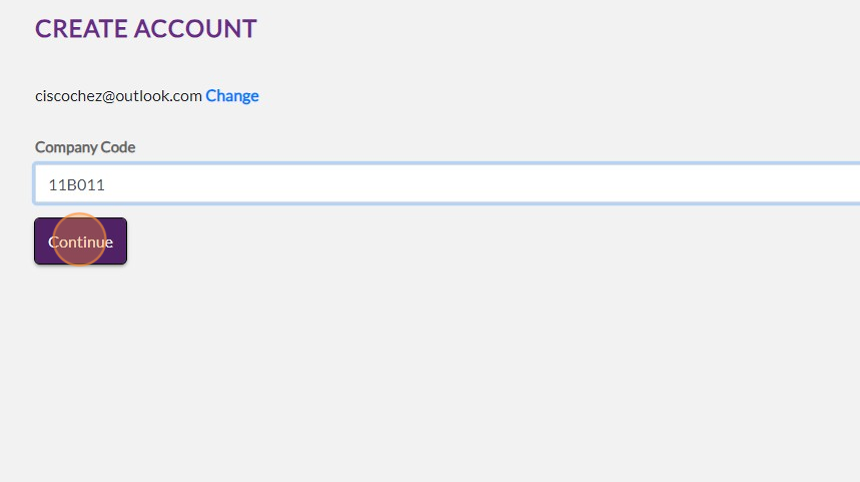
Screenshot of: Click "Continue"


7. Click the "Enter Password" field. Enter the password for your personal email address

Screenshot of: Click the "Enter Password" field.  Enter the password for your personal email address


8. Click "Save and Continue"

Screenshot of: Click "Save and Continue"


9. Click the "Enter OTP" field. Enter the code that was sent to your personal email address

Screenshot of: Click the "Enter OTP" field.  Enter the code that was sent to your personal email address


10. Click "Continue"
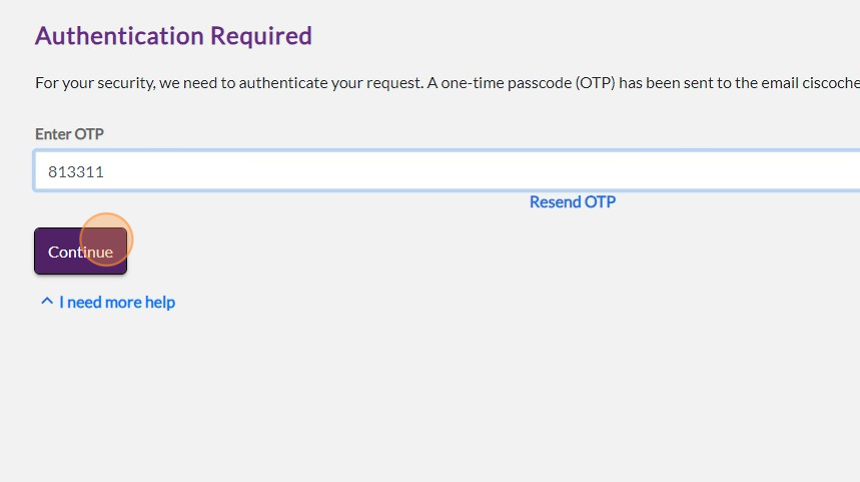
Screenshot of: Click "Continue"


11. Login to the JJ Keller FMLA Manager Employee center with your personal email address and password

Screenshot of: Login to the JJ Keller FMLA Manager Employee center with your personal email address and password


12. Click "Continue"

Screenshot of: Click "Continue"


13. Click the "Password Forgot your password?" field.

Screenshot of: Click the "Password Forgot your password?" field.


14. Click "Login"

Screenshot of: Click "Login"


15. Click this checkbox.

Screenshot of: Click this checkbox.


16. Click "Accept"

Screenshot of: Click "Accept"


Article ID: 2
Created: July 16, 2025
Last Updated: July 16, 2025
Author: Escambia Florida Clerk of Court [lendy.davis@escambiaclerk.com]

Online URL: https://ecoc.phpkb.cloud/article.php?id=2